Computer Basics for Retirees: Your Ultimate Guide to Getting Started
Facts:
- The first consumer mouse was released in 1983.
- Digital literacy among seniors is a rapidly growing trend.
Navigating the Digital Age: A Retiree's First Steps Online
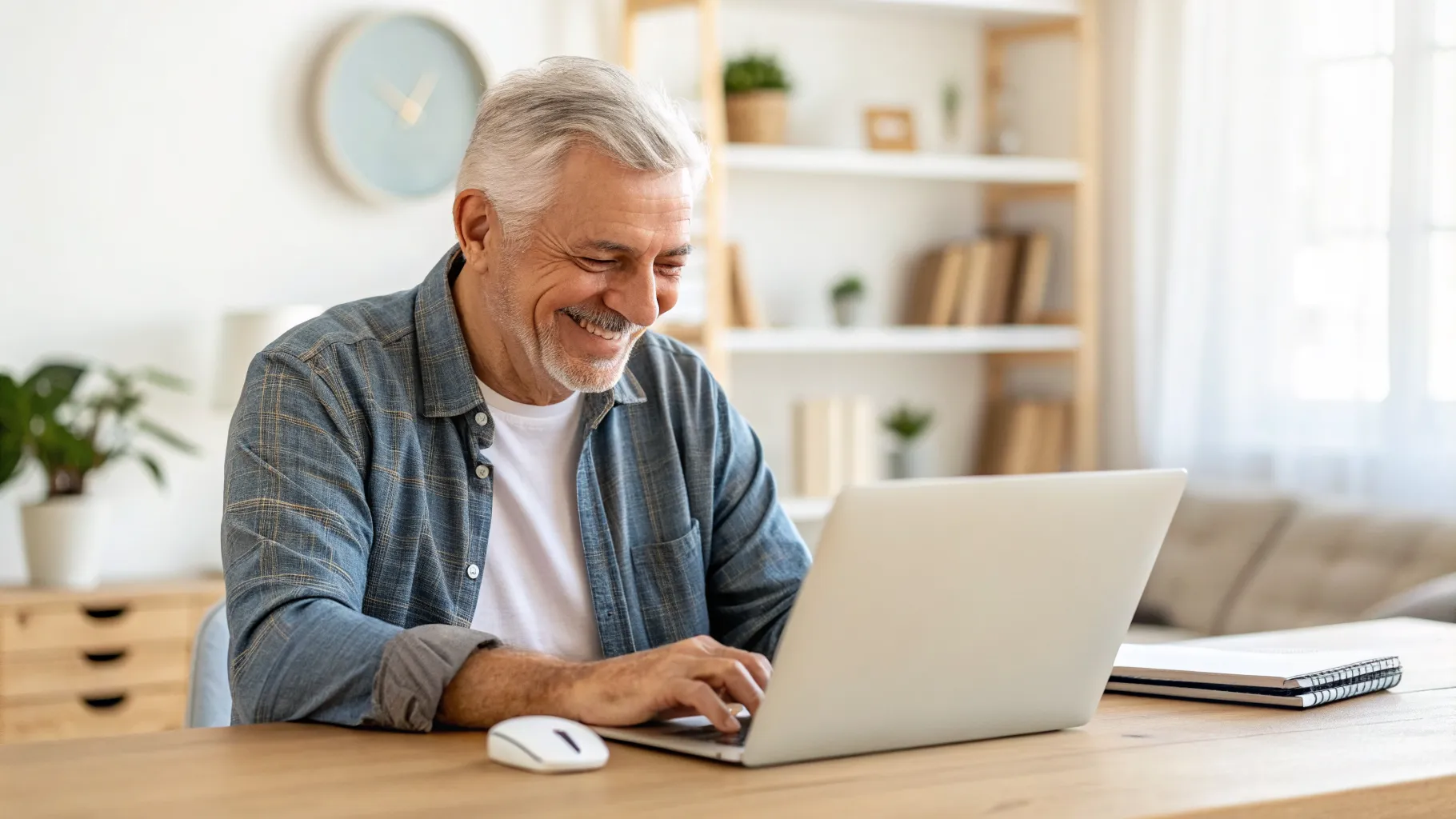
Welcome to the digital world! It's never too late to learn, and mastering computer basics for retirees can unlock a universe of connection, information, and entertainment. Whether you want to see photos of your grandchildren, manage your finances, or explore a new hobby, understanding a computer is the first step. This guide is designed specifically to provide introductory computer skills for older adults, breaking down complex topics into simple, manageable steps. We will walk you through everything from turning on the machine to sending your first email, ensuring you feel confident and secure every step of the way. This journey into technology is not just about learning a new skill; it's about enriching your life and staying connected with the world and your loved ones.
Understanding Your Tools: Hardware and Software Essentials
Before diving into the internet, it's crucial to understand the tools you're working with. Think of your computer system in two parts: hardware and software. Hardware is any physical part you can touch—the monitor (screen), the keyboard for typing, and the mouse for pointing and clicking. Getting comfortable with these is fundamental to all computer basics for retirees. Software, on the other hand, is the collection of programs and instructions that tell the hardware what to do. The most important software is the operating system (like Windows or macOS), which is the main program that runs the computer and lets you interact with it. All other programs, like a web browser or a photo viewer, are also software.
The Keyboard and Mouse: Your Primary Controls
The keyboard and mouse are your main ways of communicating with the computer. Each key on the keyboard has a function, from typing letters to performing shortcuts. The mouse allows you to move a cursor on the screen to select, open, and move items. Our beginner computer lessons for seniors always start here, because mastering these two devices builds a strong foundation for every other skill you will learn. Practice typing short sentences and moving the mouse cursor to icons on your screen. Left-clicking an item usually selects it, while a double-click opens it.
Operating Systems and Applications: The Brains and the Tools
Your computer's operating system (OS) is like the conductor of an orchestra; it manages all the hardware and software so they work together. It creates the visual environment you see on the screen, with icons and menus. Applications, or 'apps', are specific tools for specific tasks. A web browser app lets you access the internet, an email app helps you manage messages, and a word processor lets you write documents. Understanding this distinction is a key part of the introductory computer skills for older adults we teach.
Your Gateway to the World: Mastering the Internet and Email
The internet is a vast network connecting computers all over the globe, providing access to an incredible amount of information and services. To access it, you use a web browser—common examples are Google Chrome, Microsoft Edge, and Apple's Safari. By typing a website address (like 'google.com') into the address bar at the top, you can visit any site. Using a search engine like Google is one of the most powerful tools you can learn. Simply type what you're looking for, and it will provide links to relevant websites. These beginner computer lessons for seniors are designed to make you a confident internet navigator, capable of finding information on any topic you can imagine.
Staying Safe and Secure in the Online World
While the internet is a fantastic resource, it's essential to be aware of online safety. This is a critical component of any effective computer training for retirees. You should be cautious of unsolicited emails, especially those asking for personal information or money—these are often scams known as 'phishing'. Create strong, unique passwords for your accounts by using a mix of letters, numbers, and symbols. Be wary of pop-up ads that claim your computer is infected with a virus. Reputable antivirus software is the best defense. Learning to recognize these threats is a vital part of the computer basics for retirees that will protect you and your personal information online.
Finding Your Perfect Learning Pace: A Guide to Senior Computer Training
Everyone learns differently, and there are many resources available to help you. Finding the right learning environment is key to your success. Consider what style works best for you as you begin your journey with computer training for retirees. Here are some popular options to explore:
- Local Classes: Many community centers, libraries, and senior centers offer basic computer classes for seniors. These provide a structured environment with an instructor who can answer questions in person.
- Online Courses: Websites like Coursera, Udemy, or even YouTube have countless free and paid courses. These offer excellent beginner computer lessons for seniors that you can take at your own pace from the comfort of your home.
- One-on-One Tutoring: For personalized attention, consider hiring a tutor. This can be a family member, a friend, or a professional who can tailor lessons specifically to your needs and goals.
- Books and Guides: Sometimes, a well-written book is the best teacher. Look for guides specifically on introductory computer skills for older adults that you can keep by your computer as a reference.
Frequently Asked Questions
Is it too late for me to learn computer basics for retirees?
Absolutely not! Age is not a barrier to learning. Thousands of retirees learn new computer skills every day. With the right resources and a little patience, you can become proficient and confident in using technology to enhance your life.
What is the best type of computer for someone taking beginner computer lessons for seniors?
The 'best' computer depends on your needs. For most beginners, a standard laptop or an all-in-one desktop is a great choice. They are user-friendly and have everything you need to get started. Focus on a model with a clear, large screen and a comfortable keyboard.
Where can I find reputable basic computer classes for seniors in my area?
A great place to start is your local public library or senior community center. They often host free or low-cost workshops. You can also search online for 'basic computer classes for seniors near me' to find local organizations and businesses that offer training.
References
- Pew Research Center - Technology Use Among Seniors
- National Institute on Aging - Computers, the Internet, and Your Health
- AARP Technology - Resources for Seniors
- Federal Trade Commission - Online Security Tips